Running File Import Commands
 Use the File Import button to access a sub-menu of available file import command types. Each command type triggers the service to search a specified directory and import all known data files corresponding to the file type referenced by the selected command. Files that are successfully imported are moved into a "Processed" sub-directory and files that either completely or partially fail are moved into a "Failed" sub-directory.
File import commands take the form Import File: X, where X represents the specific import file type registered on your system. Each file type equates to a single command, e.g. Import File: Configuration CSV is a command to import .csv configuration data files. See Installing CygNet Measurement for more information about installation and registration of support files.
Some file import commands utilize an import definition file (.idf) to customize how the .csv data file is imported into your system. See Using an Import Definition File for more information.
See the corresponding configuration topics for more information about configuring or editing import commands for specific types of file imports. Available file import commands may include the following types.
- Alarms CSV
- Configuration CSV
- EmersonRoc Laptop File
- Events CSV
- Gas Analysis CSV
- Gas Quality CSV
- History CSV
- Totalflow Laptop File
See FMS Commands for more information.
Running a File Import Command
Once the file import command is configured as desired, click Run FMS Command to access the Run FMS Command dialog box to configure and run the selected type of file import command manually.
|
Run FMS Command |
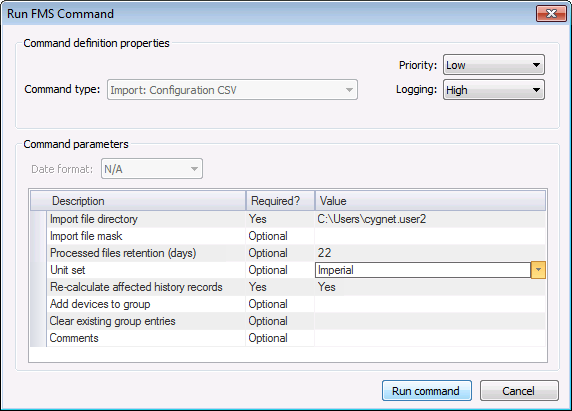
When you run the command, results will be shown in the Command Results pane of the FMS Command dialog box. Click on a results row in the device list (top pane) to display details in the command results list (bottom pane). Execute a separate command for each file type you want to import.
Note: For best system performance, it is strongly recommended that multiple file imports performed for the same Node(s) are executed in chronological order.
File import commands can also be initiated by scheduling the command in the Master Scheduling Service (MSS) in CygNet Explorer, or via scripting.
See Scheduling FMS Command Tasks in the MSS for more information about scheduling commands.
See CxFms for more information about scripting commands.
More:
 Configuring Import: Alarms CSV Commands
Configuring Import: Configuration CSV Commands
Configuring Import: EmersonRoc Laptop Commands
Configuring Import: Events CSV Commands
Configuring Import: Gas Analysis CSV Commands
Configuring Import: Gas Quality CSV Commands
Configuring Import: History CSV Commands
Configuring Import: Totalflow Laptop Commands
Using an Import Definition File


